---
title: Excel Files
description: Infoveave supports diverse file formats for Datasources, enabling custom data ingestion, calculated columns, and comprehensive data table.
---
import { Aside,Steps } from '@astrojs/starlight/components';
import { MediaPlayerComponent } from "../../../../../components/video-player";
import RunScript from "../../../../../components/RunScript.astro";
# Excel Files
Infoveave supports adding file formats like Excel, JSON, Delimited, Unstructured, Fixed length files, and Multiple files as a Datasource in Infoveave.
## Creating a Datasource Using Microsoft Excel
1. To access Infoveave Datasource types, navigate to **Studio** **Datasources**. All types of Datasources created by you or shared with you are displayed under **My Datasources** and **Shared Datasources**.
2. To create a new Datasource, click on **New Datasource**.
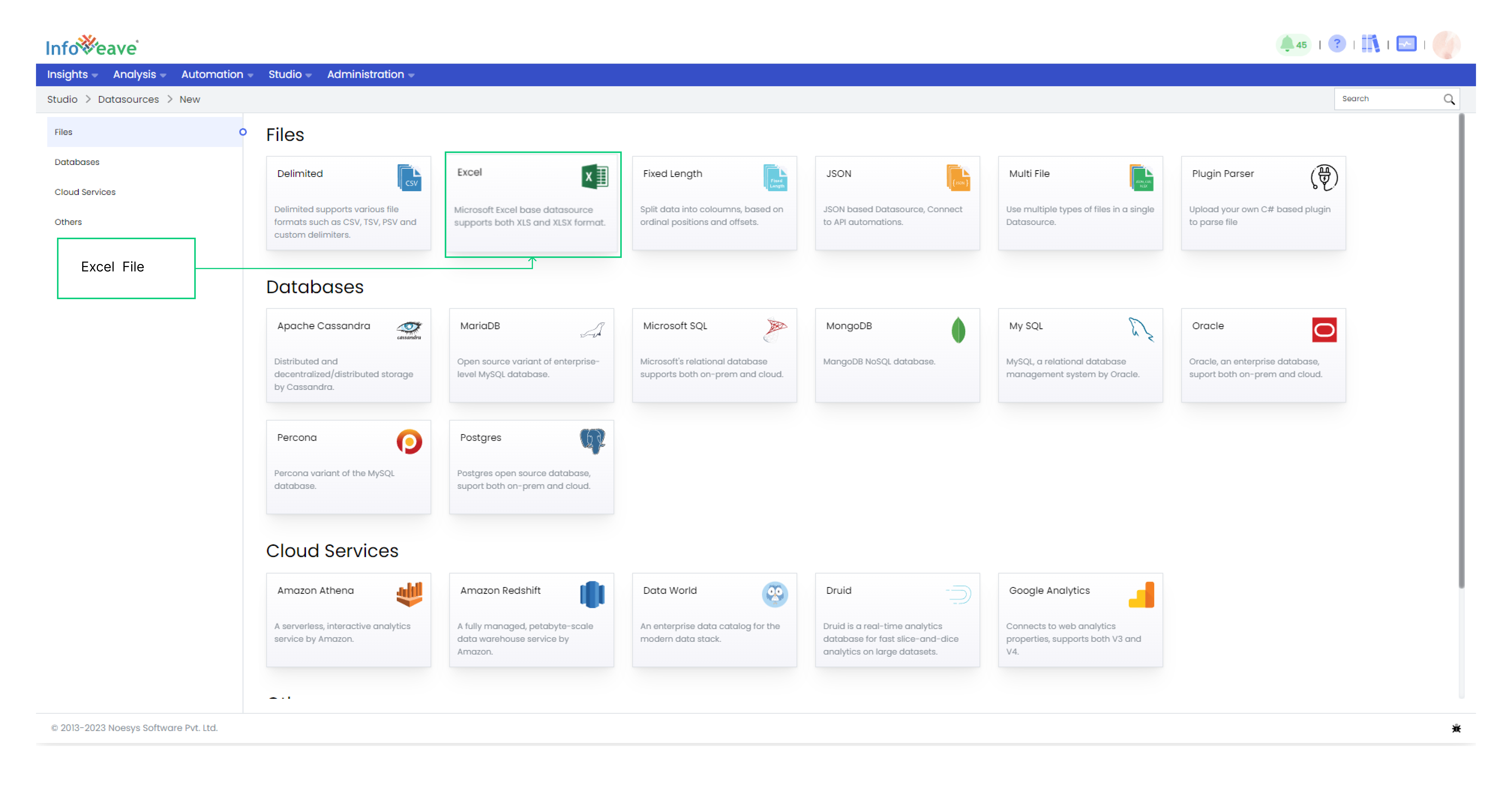
3. Choose **Excel** under Files as the Datasource type.
4. Upload the Excel file from your local storage. Supported file formats include **.xlsx**, **.xlsm**, and **.xls**. Please note that the maximum file size allowed for upload is 5.00 MB.
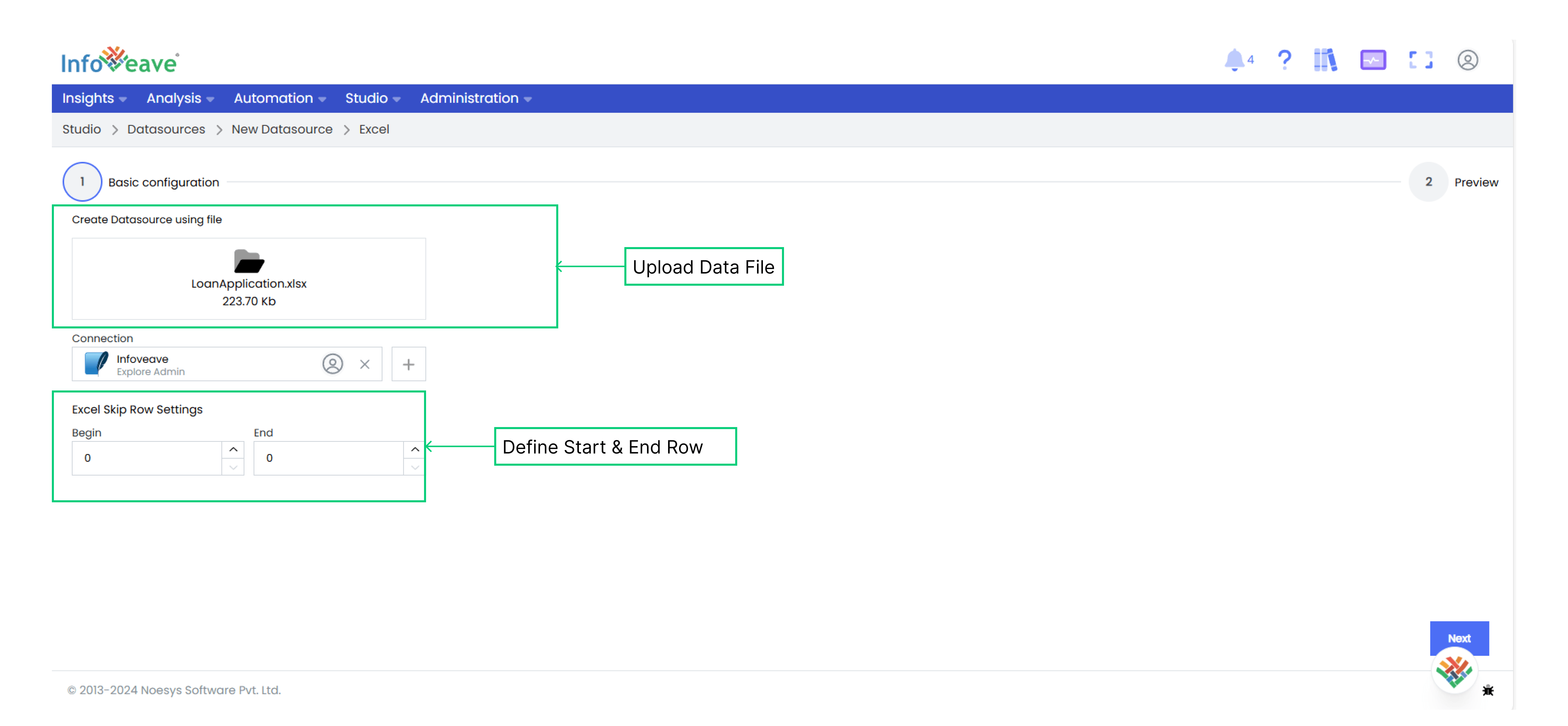
5. Choose the [connection](/administration/connections/) type for your Datasource. In this case, the connection type is set to default.
6. Define the Excel Skip Row settings.
7. After providing the necessary details, click on **Next** to configure the data table.
8. Once the file is processed, a tabular preview of the data is displayed.
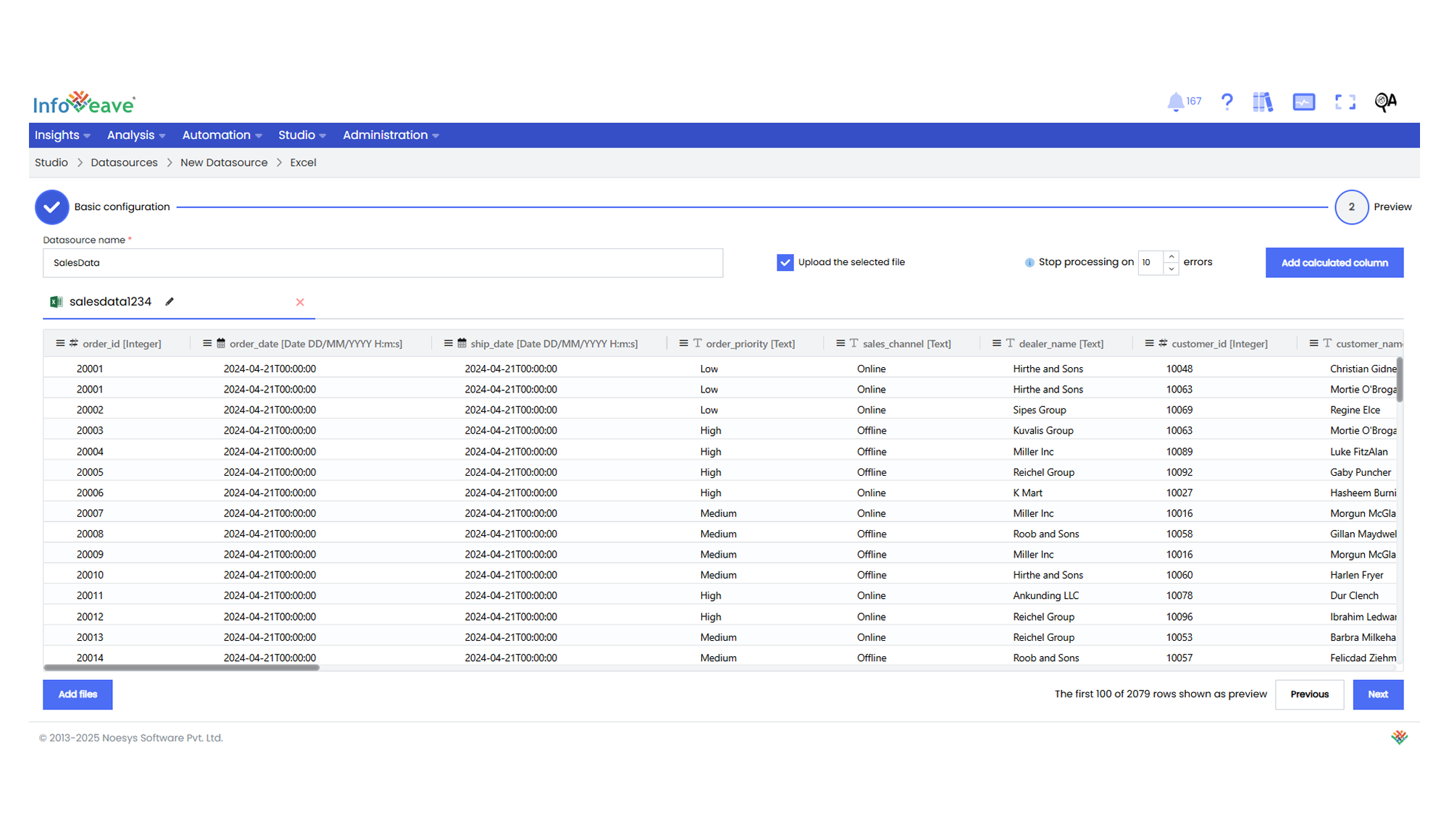
9. Provide a name for your Datasource.
10. To add additional files to supplement your Datasource, click on the **Add files** option.
11. To customize the **Table name** and choose the **Ingestion type**, click on the **Edit** icon next to the table name. Configure the following fields within this section.
* **Table name** Specify the desired table name.
* **Ingestion type** Choose from options such as **Incremental**, **Truncate and Reload**, or **Update** to define how new data is integrated into the existing dataset.
* **Date column exists** This checkbox identifies the date column in your dataset by default.
* **Add upload date** If you wish to include an upload date column, select this checkbox. It is helpful for tracking when new data is added to the dataset.
* **Incremental** With the "Incremental" ingestion type, new data is added to the existing dataset without affecting the already loaded data. This mode is ideal when you want to continuously append new records to your dataset without modifying or reloading the existing information. It is efficient for scenarios where your dataset is frequently updated.
* **Truncate And Reload** Selecting "Truncate and Reload" means that the existing dataset is completely replaced with the new data. This mode is useful when you want to refresh your dataset with the most recent information and remove any previous data. It is particularly suitable for scenarios where the entire dataset needs to be updated periodically.
* **Update** In this mode, Infoveave identifies matching records between the new data and the existing dataset based on defined keys. Updated records are replaced while new records are added. This mode is efficient when you want to refresh your dataset with new information and update existing records without starting from scratch.
12. Click on the column header of the tabular view to set the following.
* **Column Type** Change the column data type.
* **Auto Size All Columns** Perfectly fit the data in the column.
* **Fit to Chart** Set the visibility of the data for quick viewing.
13. Enable the **Upload the selected file** option to upload the data to the table structure.
14. To make any changes to the data table, select the required one and click on **Previous**.
15. Use the [Add calculated column](/studio-v8/datasources/calculated-columns-datasource) feature to create a new column with calculated values not available in the original dataset. This is especially useful for performing custom calculations on your data.
16. To define the measures and dimensions on the dataset, click on **Next**.
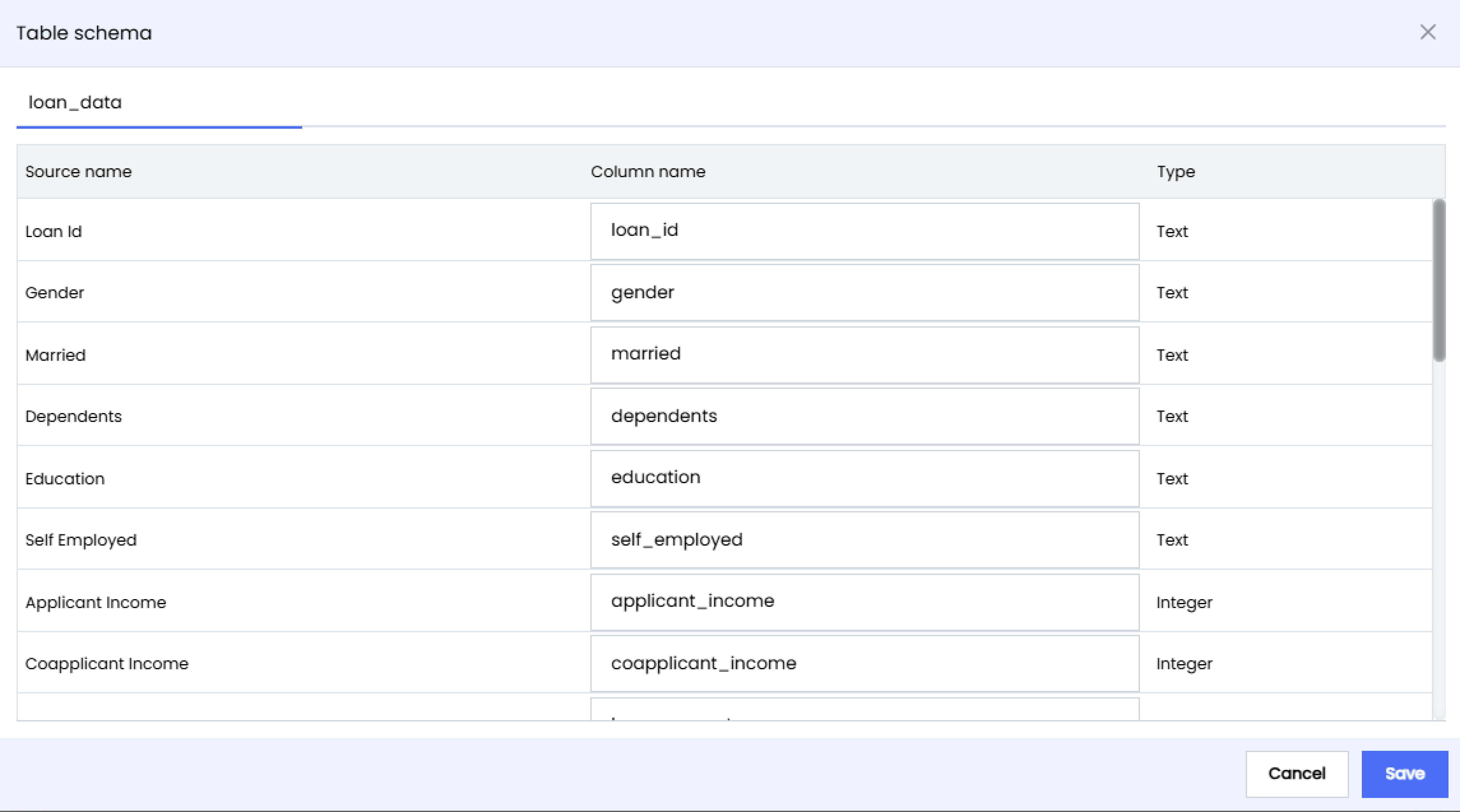
17. The table schema appears for you to rename the column if required.
18. Click on **Save** to save the updated table schema. You are redirected to the Datasource Designer.
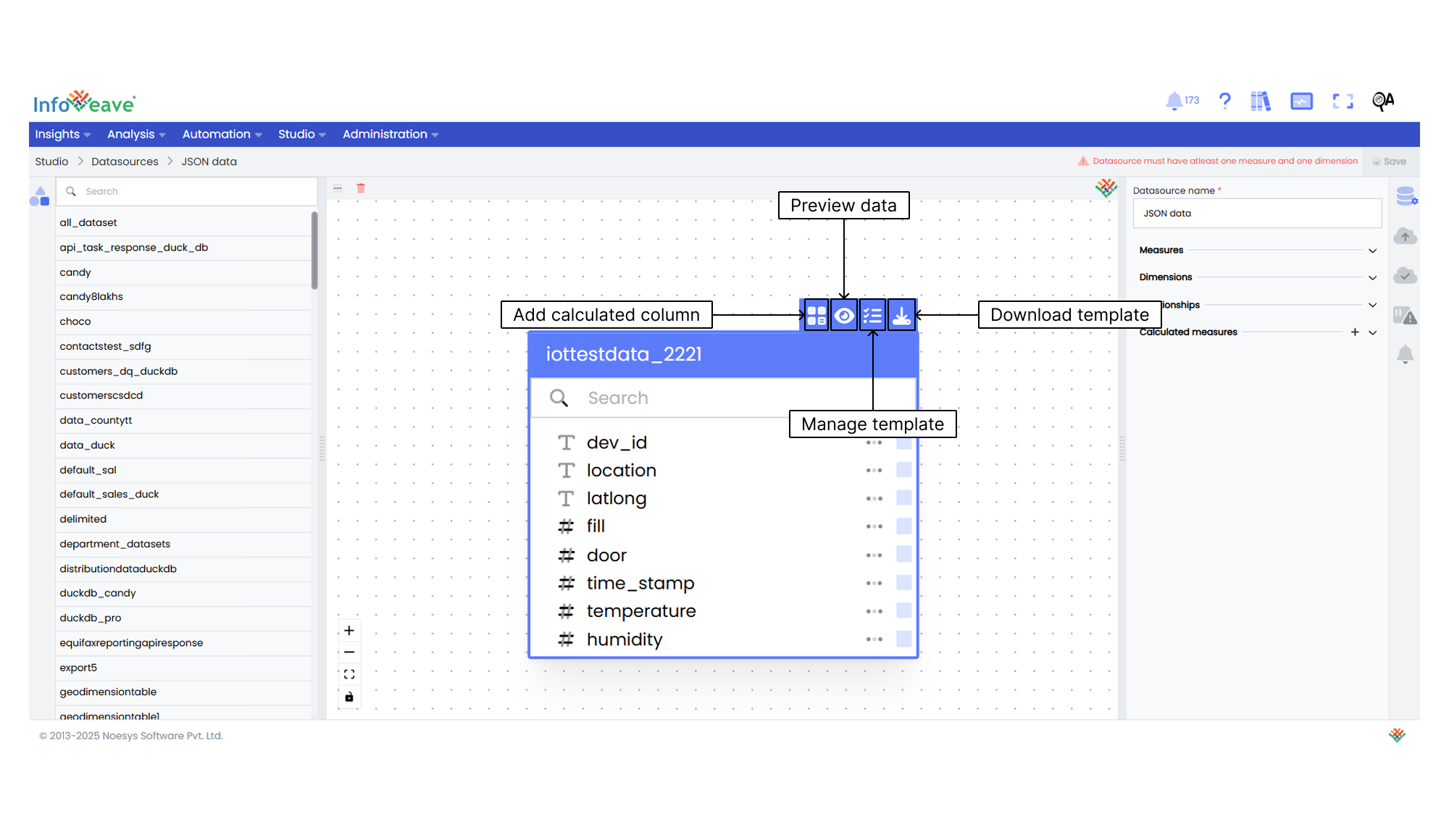
19. The Datasource you create is available in the Datasource Designer screen.
To learn about adding measures and dimensions to the data table, visit [Measures and Dimensions](/studio-v8/datasources/measures-dimensions-and-hierarchies).
To learn about adding calculated columns, visit [Calculated Columns](/studio-v8/datasources/calculated-columns-datasource#configuring-calculated-columns).
To learn about adding calculated measures, visit [Calculated Measures](/studio-v8/datasources/calculated-measures#configuring-calculated-measures).