---
title: Introducing Insights
description: Discover how to navigate Infoveave Insights, manage Infoboards, reports, and lists. Learn to access, view, and organize content effectively, including using the Tab View for better data management.
---
import { Aside,Steps } from '@astrojs/starlight/components';

import { MediaPlayerComponent } from "../../../../components/video-player";
import RunScript from "../../../../components/RunScript.astro";

# Introducing Insights

<MediaPlayerComponent video="new-insights-video.mp4"
chapters={[
  {
    "start": 0,
    "end": 2,
    "text": "Insights Menu",
    "description": "Access the Insights menu by clicking the Insights option at the top of the screen. This menu provides access to pre-built or shared Infoboards, Reports, and Lists."
  },
  {
    "start": 2,
    "end": 3,
    "text": "My Organization",
    "description": "My Organization allows users to access the organization's resources. As seen in the video, Infoboards, Reports, and Lists are available for use."
  },
  {
    "start": 3,
    "end": 5,
    "text": "My Workspace",
    "description": "My Workspace is a personal area for each user, allowing them to manage and access personal items. The video shows folders such as Digital Marketing, Reconciliation, Healthcare, Visualization Options, and Created by Me available."
  },
  {
    "start": 5,
    "end": 7,
    "text": "Create Infoboard",
    "description": "Create Infoboard offers users a way to create new Infoboards. As shown in the video, Create Infoboard allows users to add a grid or designer-based infoboard, and Create Infoboard with AI makes it possible to use GenAI to create an infoboard."
  },
  {
    "start": 7,
    "end": 10,
    "text": "Chat with Fovea",
    "description": "Chat with Fovea offers users a way to create new Infoboards using AI."
  }
]
}
poster="/images/introduction-poster.png"
posterText="Introducing Insights"
client:load/>

The Insights module helps you organize, analyze, and visualize data effectively. It provides a dynamic layout to access and view **Infoboards** (interactive dashboards), **Reports** (detailed data analysis), and **Lists** (structured data sets) in an organized and user-friendly way.

## Navigating the Insights module
  
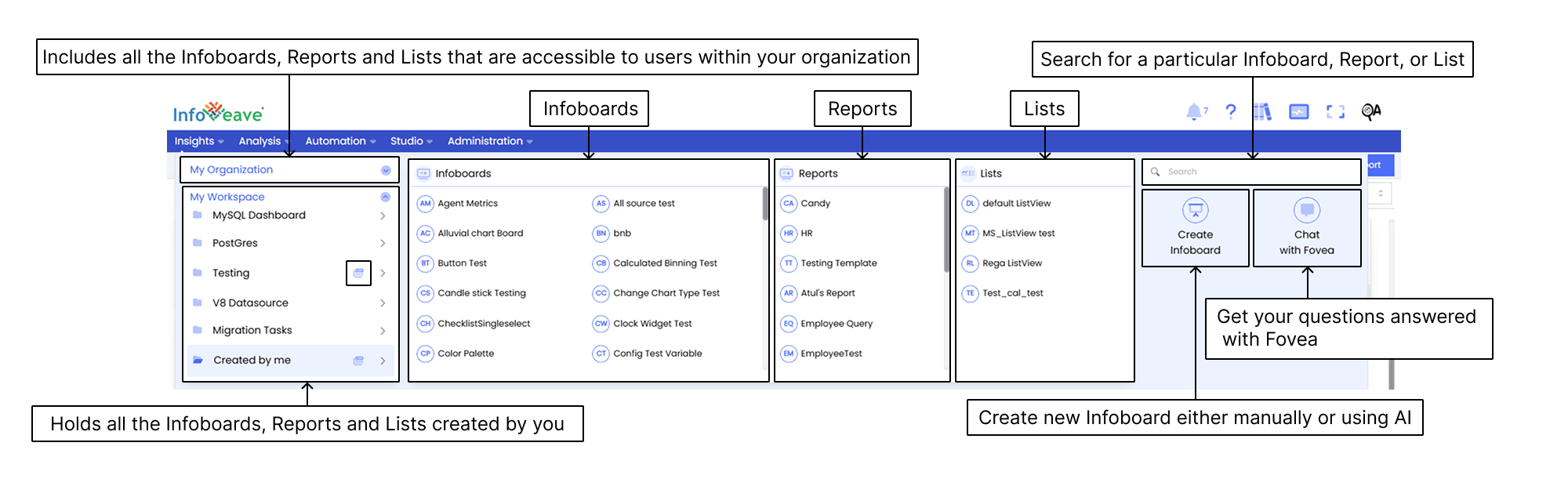
When you enter the Infoveave Insights module, you see your content categorized into My Organization and My Workspace.

**My Organization** includes all the Infoboards, Reports, and Lists shared with users in your organization.

**My Workspace** is your personal workspace where you keep all the Infoboards, Reports, and Lists you create.


## Viewing content in folders
![](/images/Insights/Introducing-Insights/Insights.png)

Infoboards, Reports, and Lists arranged in folders appear within their respective folders in the main viewing area of the Insights module.

<Aside>
* Infoboards, Reports, or Lists not placed in any folder appear under

  **Shared with me** in the My Organization tab

  **Created by me** in the My Workspace tab  
* The **My Organization** tab does not appear if no assets are shared with you by your organization.  
* The **My Workspace** option does not appear if you have not created any Infoboards, Reports, or Lists.  
</Aside>


## Accessing Infoboards from Insights

To access Infoboards from Insights, follow these steps

<Steps>
1. Click **Insights** in the main menu.  
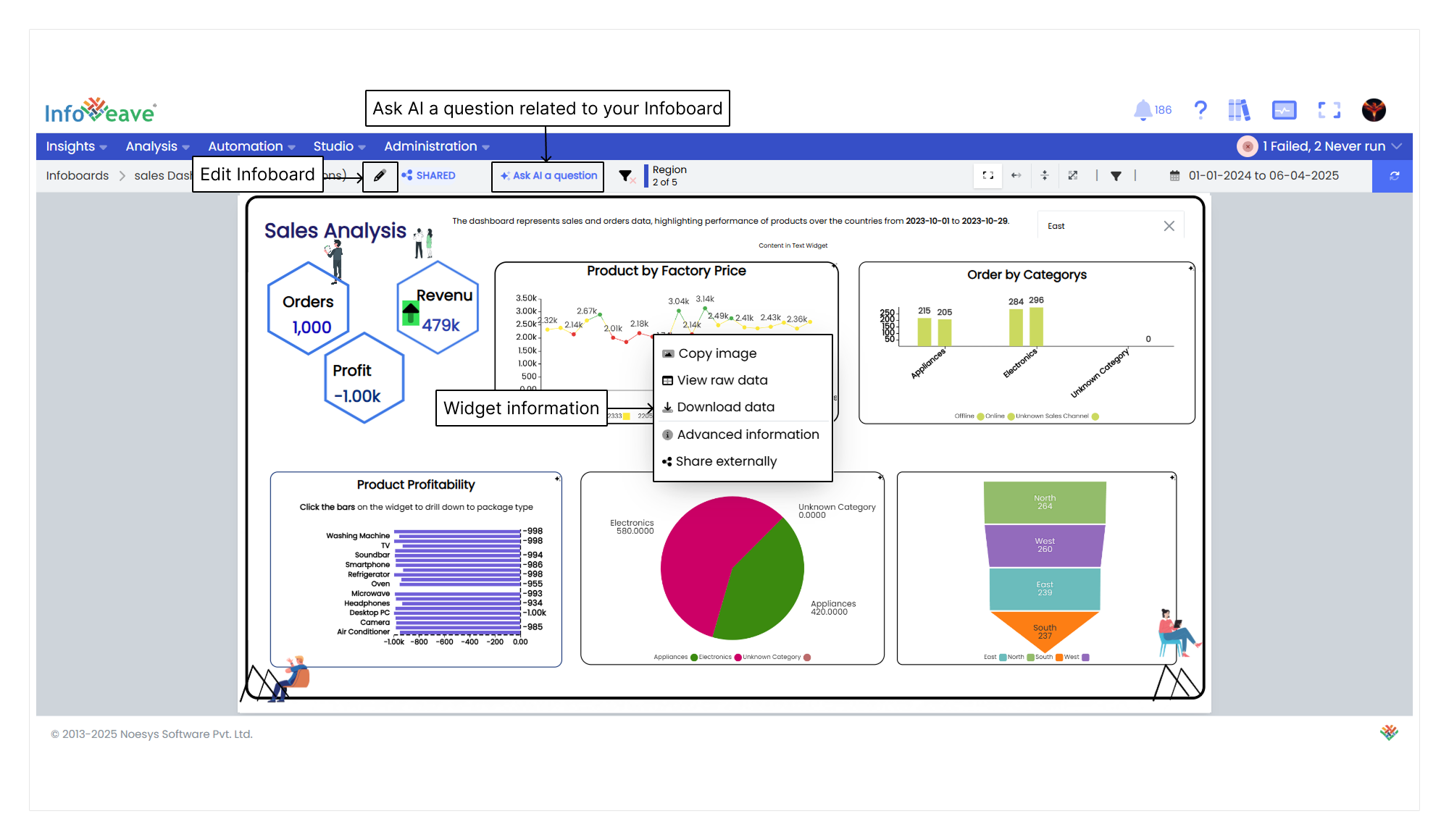
2. In the Insights layout, find the **Infoboards** option.  
3. Browse through the Infoboards or use the search bar to find the one you want.
![Widget Details](/images/Insights/Introducing-Insights/Widget-Details.png)
4. Click on the Infoboard you want to open and you are redirected to its view mode.  
5. To edit the Infoboard, click the **Edit** icon <i class="fa-duotone fa-regular fa-pencil"></i> . 
</Steps>

<Aside>
* All Infoboards you create are listed under **Insights**.  
* To learn how to create an Infoboard from a template or from scratch, go to [Create Infoboard](/insights-v8/create-infoboard/) . 
</Aside>

## Infoboard Tab View

The tab view feature arranges all the Infoboards in a folder as separate tabs.

To use the tab view, follow these steps

<Steps>
1. Click **Insights** in the Infoveave menu.  
2. Find the folder with the Infoboards you want to open as tabs.  
3. Click the **Open as tabs** icon next to the folder name to switch to the tabbed layout. 
</Steps>

