---
title: Introducing What-If Formulae
description: Explore What-If Formulae for scenario analysis, MSRP/RRP calculation, cost of goods estimation, and profit margin analysis.
---
import { Aside, Steps,Card } from '@astrojs/starlight/components';
import { MediaPlayerComponent } from "../../../../components/video-player";
import RunScript from "../../../../components/RunScript.astro";
# Introducing What-If Formulae
The What-If Formulae help you explore different scenarios using one or more formulas on measures, expressions, and fixed values. They use the goal-seeking method to provide suggestions. In other words, if you don’t know the input value for an expression but know the desired result, the What-If Formulae suggest inputs to help you achieve it. You can also apply filters to the What-If Formulae based on dimensions available in the Datasource.
## Creating What-If Formulae
Steps to create and set up What-If Formulae
1. To create and set up a What-If Formulae based on the measures and dimensions in the Datasource, click on **Analysis** **What-If Formulae** .
All What-If Formulae created by you or shared with you appear under the tabs **My What-If Formulae** and **Shared What-If Formulae** respectively.
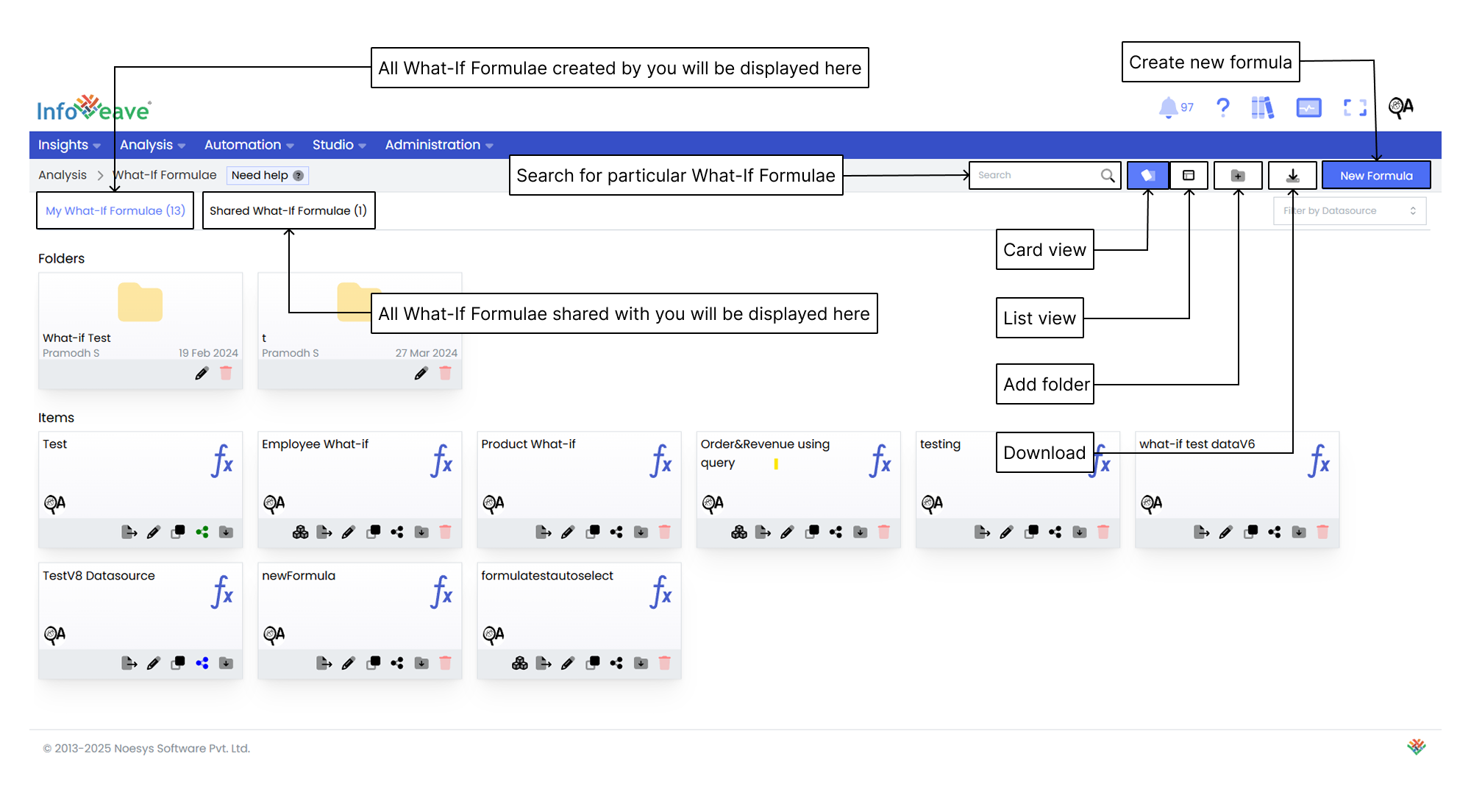
2. Click on **New Formula** to create a new one.
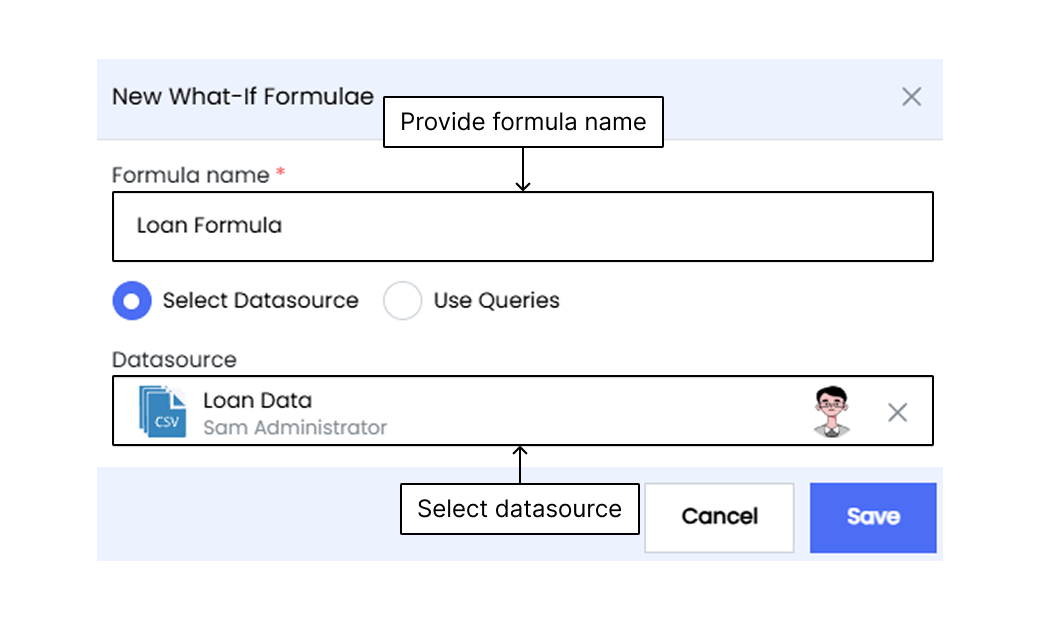
3. Enter the formula **Name**.
4. Select the **Datasource** or **Query** from the respective dropdown list.
* **Datasource** Use an existing Datasource to create the formula, allowing access to all predefined measures and dimensions.
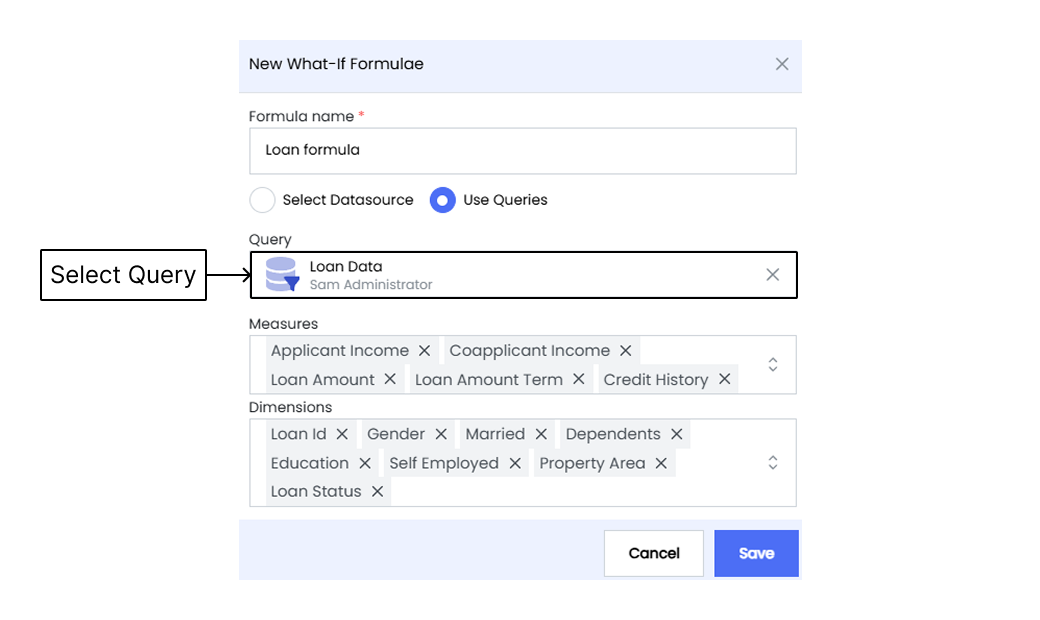
* **Queries** Use existing related queries that contain measures and dimensions.
5. When you select **Queries** to configure the What-If Formulae, define the required measures and dimensions.
6. Click on **Save** to add the What-If Formulae to Infoveave.
## Identifying and Defining Scenario Elements
Identify and define the key variables involved in your What-If scenario. These variables include the measures and values you want to analyze or adjust as part of your goal-seeking process.
To configure the What-If Formulae in Infoveave, follow these steps
1. Click the **Edit** icon on the newly created Formulae.
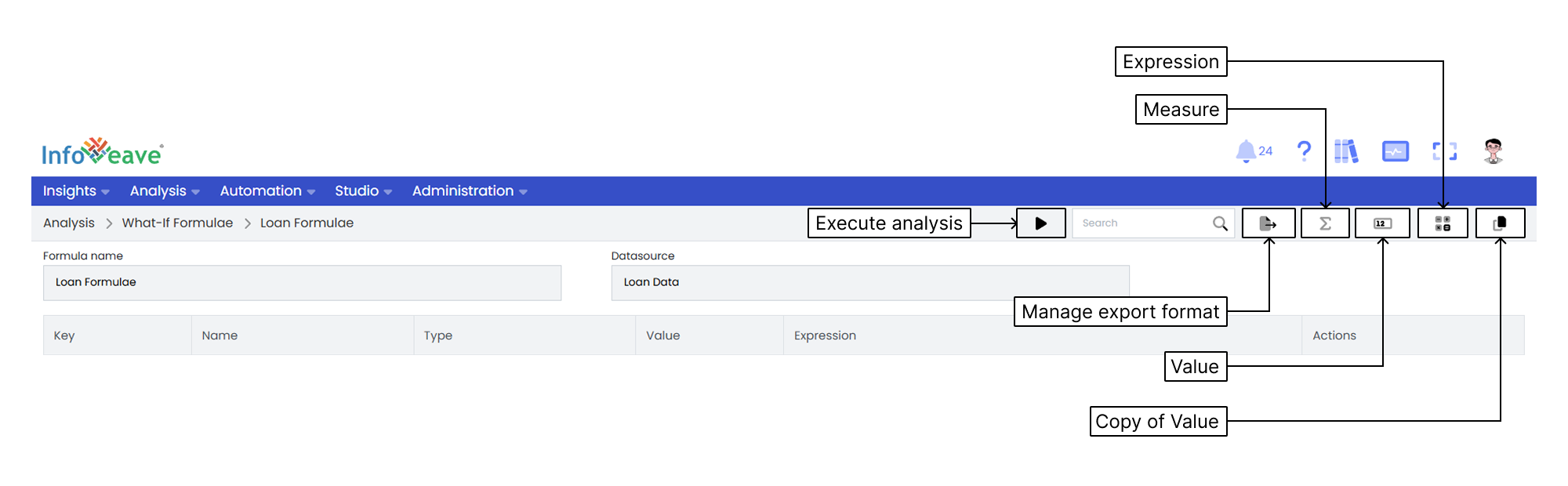
2. A dialog opens where you define **Measures**, **Values**, and **Expressions** for the formula.
#### Measures
Assign selected measures with unique keys for easy reference. This helps you clearly formulate the scenario.
To configure the **Measure** formula element in Infoveave, follow these steps
1. Click the measure icon to add a **Measure**.
* **Key** Use alphabets as keys to define each measure. Assign a unique key to each measure.
* **Name** Enter a descriptive name for the measure. This is mandatory.
* **Measure** Select the relevant measure you want to use in the formula.
* **Dimension** Choose the relevant dimension(s) for the measure.
* **Value type** Specify if the value is a numeric **Value** or a **Percentage**.
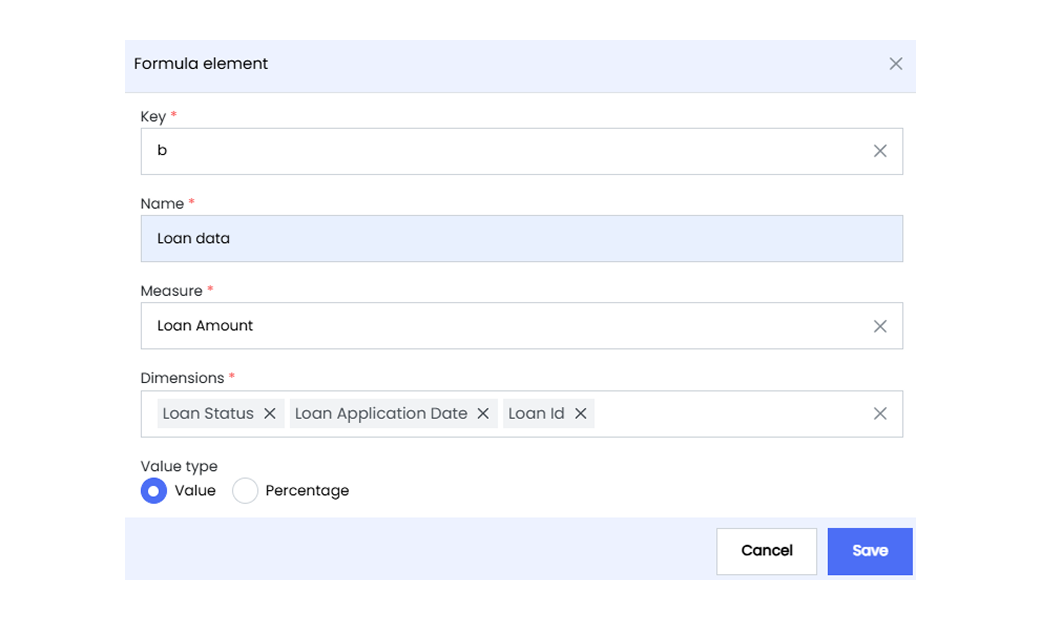
2. Click **Save** to save the Measure.
#### Value
A value is a numerical amount or percentage used as a basis to evaluate scenarios and assess impact.
To configure the **Value** element in the What-If Formulae, follow these steps
1. Click the value icon to add a **Value**.
* **Key** Use alphabets as keys to define each value element.
* **Name** Provide a descriptive name. This is mandatory.
* **Initial value** Enter the starting value for calculations.
* **Value type** Choose whether the input is a **Value** or **Percentage**.
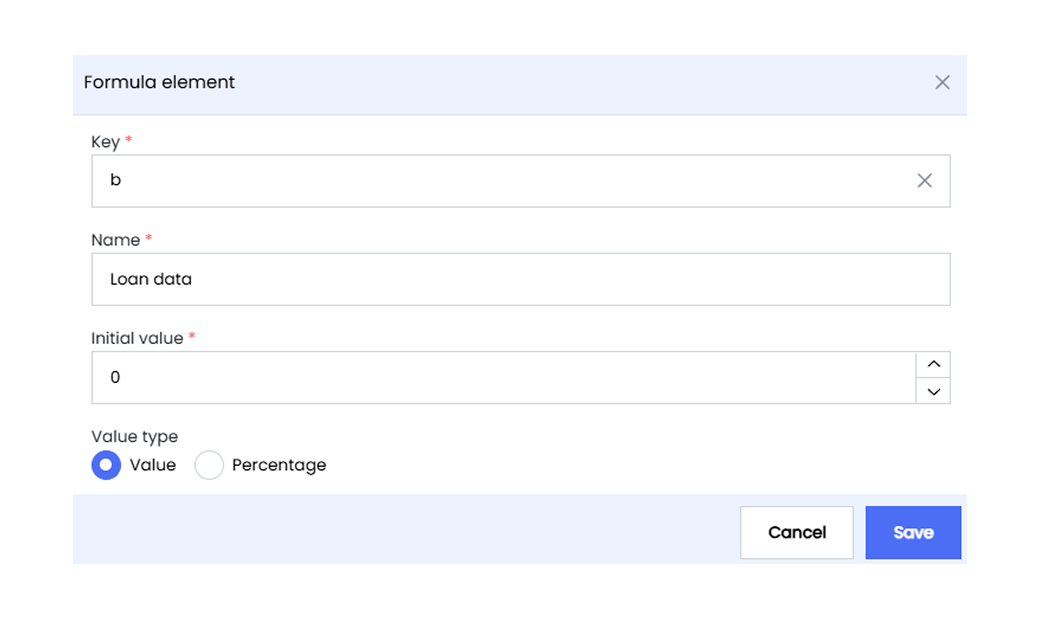
2. Click **Save** to add the Value.
## Defining Expressions
You can configure your scenario formula using **Expressions**, based on your predefined measures and values. The **Copy of value** option helps you create a new variable using the same value as an existing one, saving time and effort.
## Expressions
Expressions let you define goal-seeking formulas using the assigned key variables.
To configure the **Expression** in Infoveave, follow these steps
1. Click the expression icon to add an **Expression**.
* **Key** Assign a unique key using alphabets.
* **Name** Enter a name for the expression element.
* **Expression type** Choose from the following:
**Standard** Uses Excel-like functions and mathematical formulas. Always returns a numeric value.
**JavaScript** Use JavaScript functions or expressions for advanced calculations.
**Standard string** Uses Excel-like functions but returns a string. Best for text-based outputs.
* **Expression** Enter the logic or formula based on the type selected.
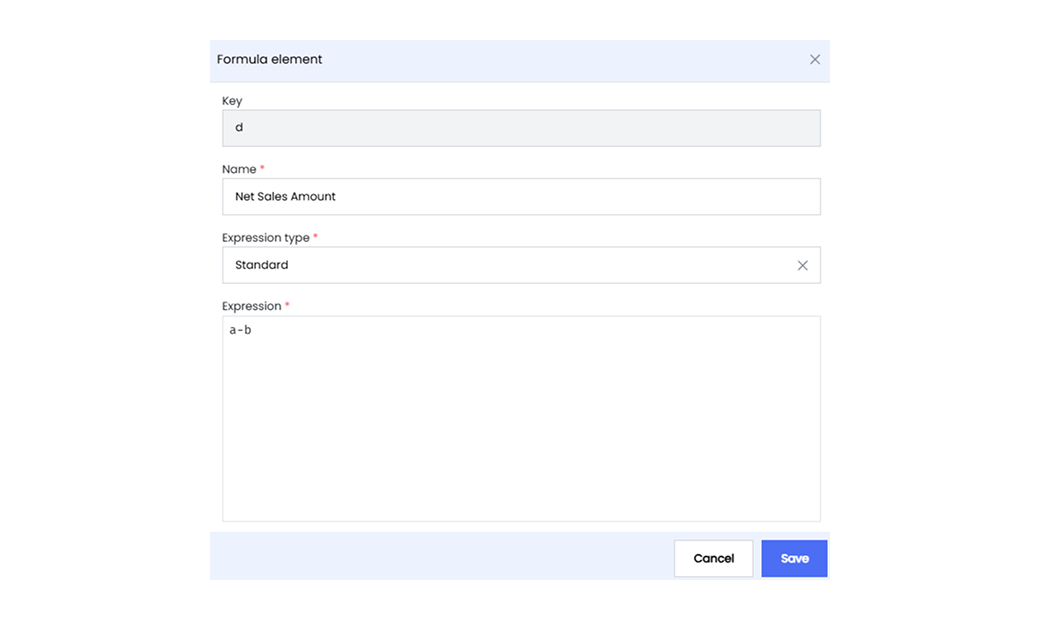
2. Click **Save** to add the expression.
#### Examples with Different Expression Types
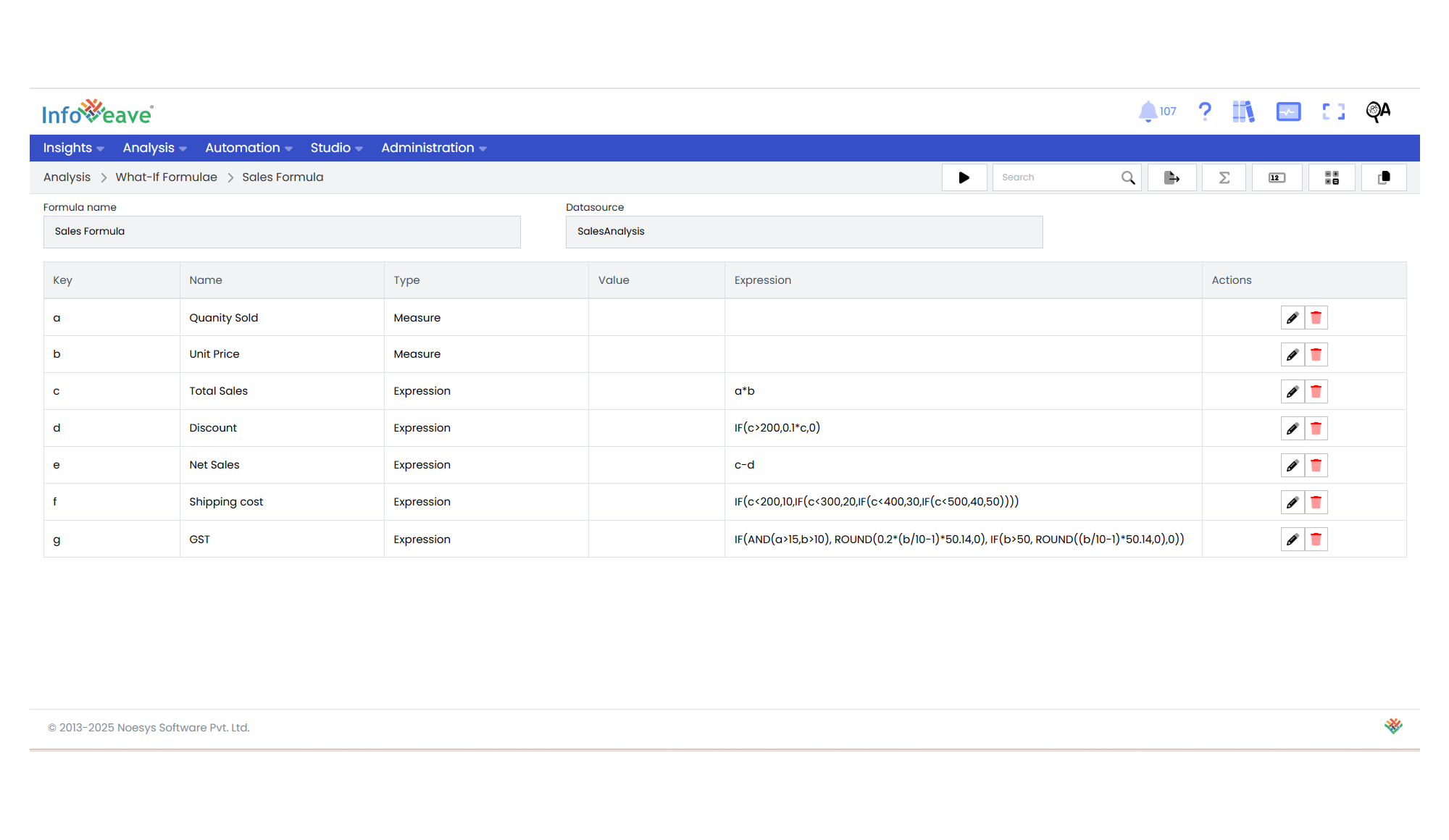
**Expression**
```
a * b
```
**Explanation**
This multiplies two values.
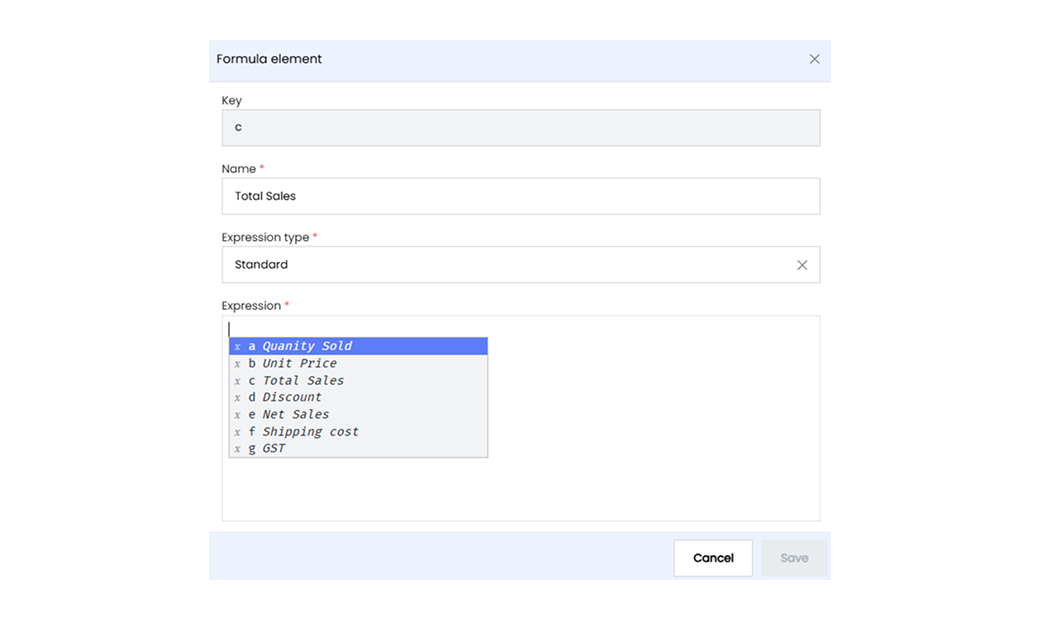
Use `Ctrl + Shift` for auto-suggestions while typing.
**Components**
`a` = Quantity Sold (Measure)
`b` = Unit Price (Measure)
`*` = Multiplication operator
The asterisk (*) is the multiplication operator
**Purpose**
Calculates total sales before discounts using quantity × unit price.
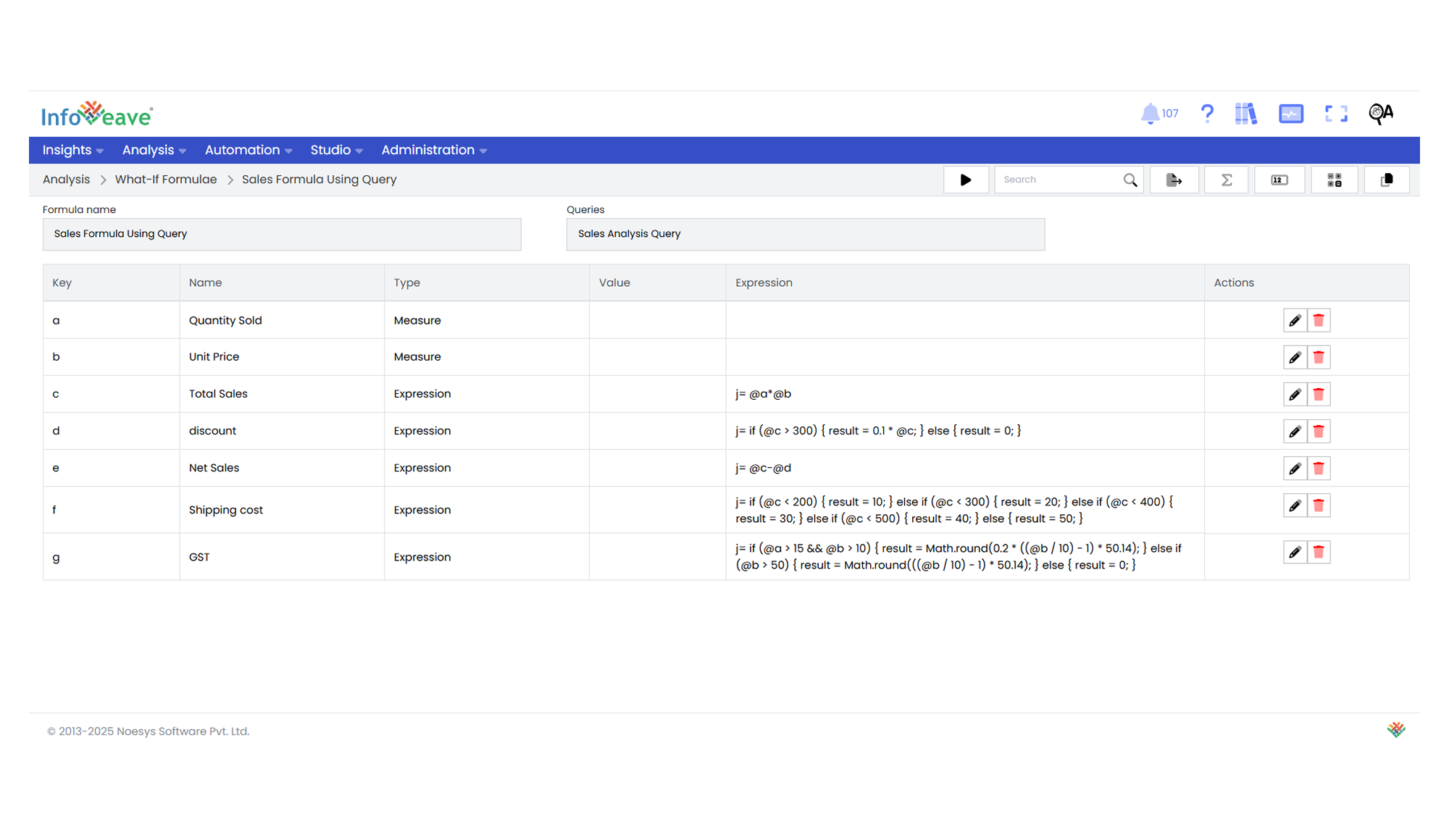
**Expression**
```
@a * @b
```
**Explanation**
This multiplies two values using JavaScript syntax.
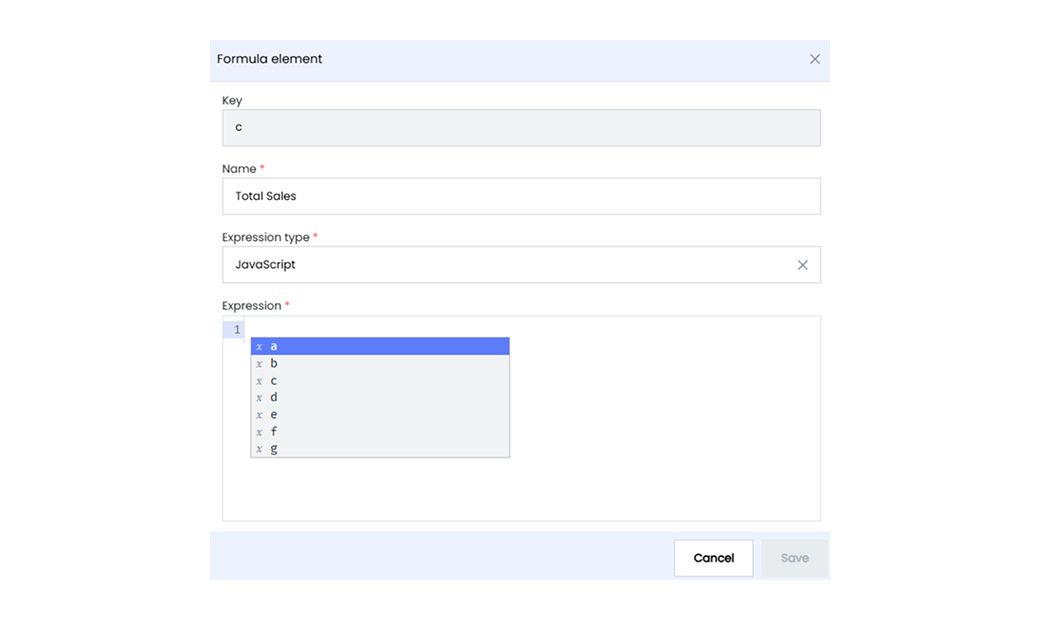
Use `Ctrl + Shift` for auto-suggestions while typing.
**Components**
`@a` = Quantity Sold (Measure)
`@b` = Unit Price (Measure)
**Purpose**
Calculates total sales: Quantity Sold × Unit Price
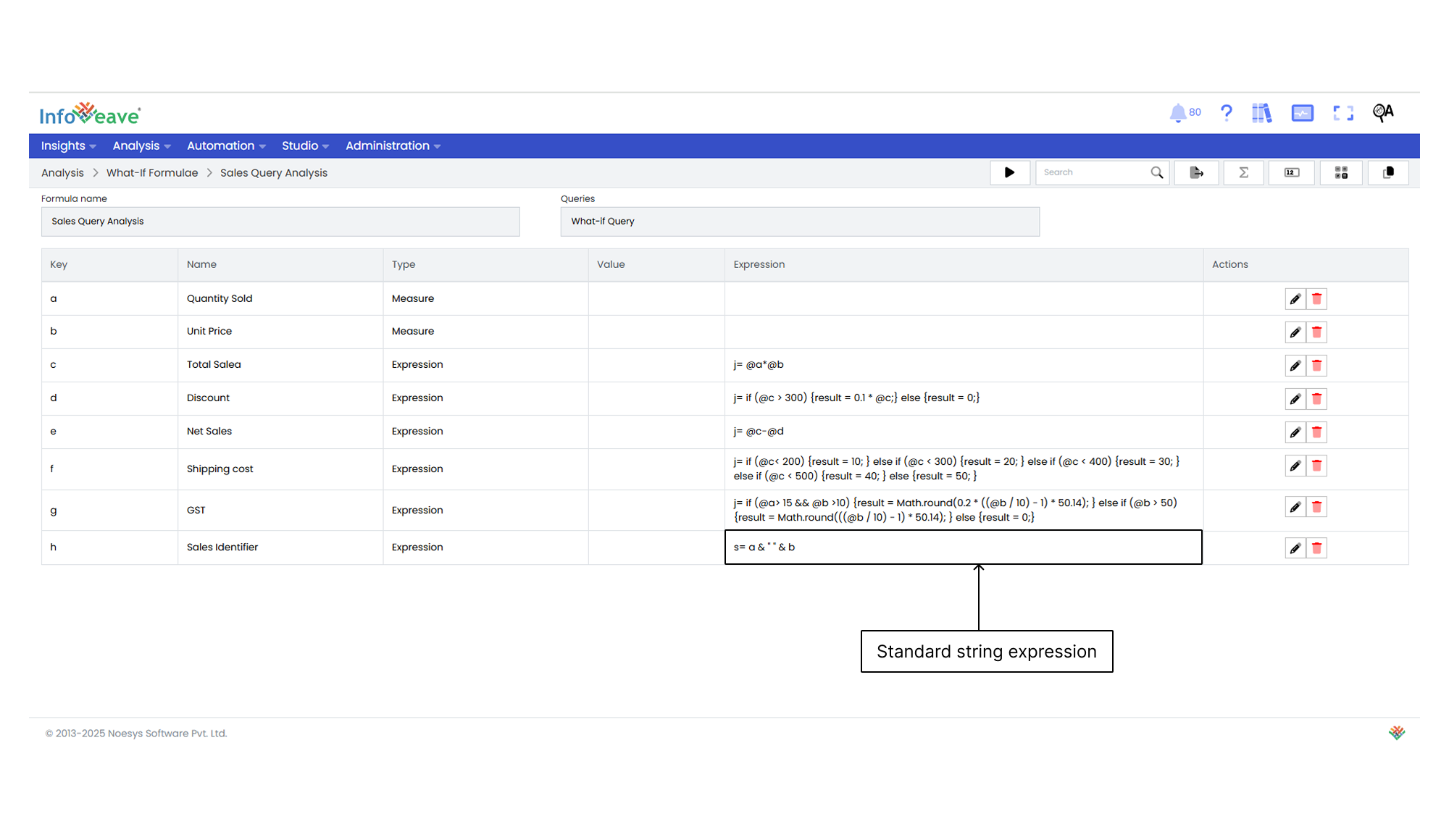
**Expression**
```
a & " " & b
```
**Explanation**
Concatenates two values with a space in between.
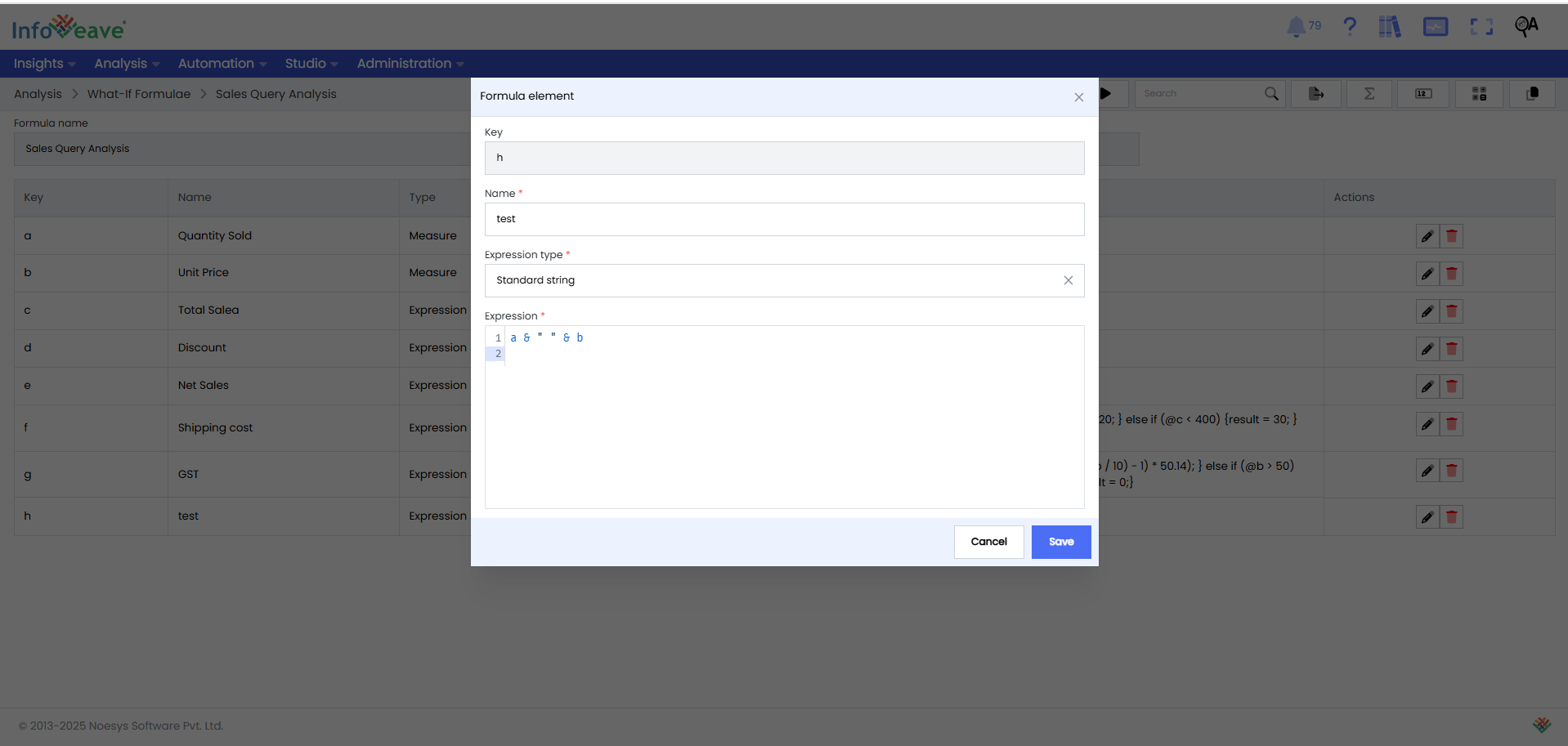
**Components**
`a` = Quantity Valid (Measure)
`b` = Web Price (Measure)
**Purpose**
Combines both values into a single string like `"100 25"`
Example output:
If a = 100 and b = 25, the result is "100 25"
## Copy of value
The **Copy of value** feature creates a new variable with the same value as an existing one. It saves time by eliminating the need to re-enter values.
To configure the **Copy of value** formula element, follow these steps
1. Click the **Copy of value** icon.
* **Key** Assign a unique key using alphabets.
* **Name** Provide a name describing the purpose.
* **Value** Select the key from which to copy the value.
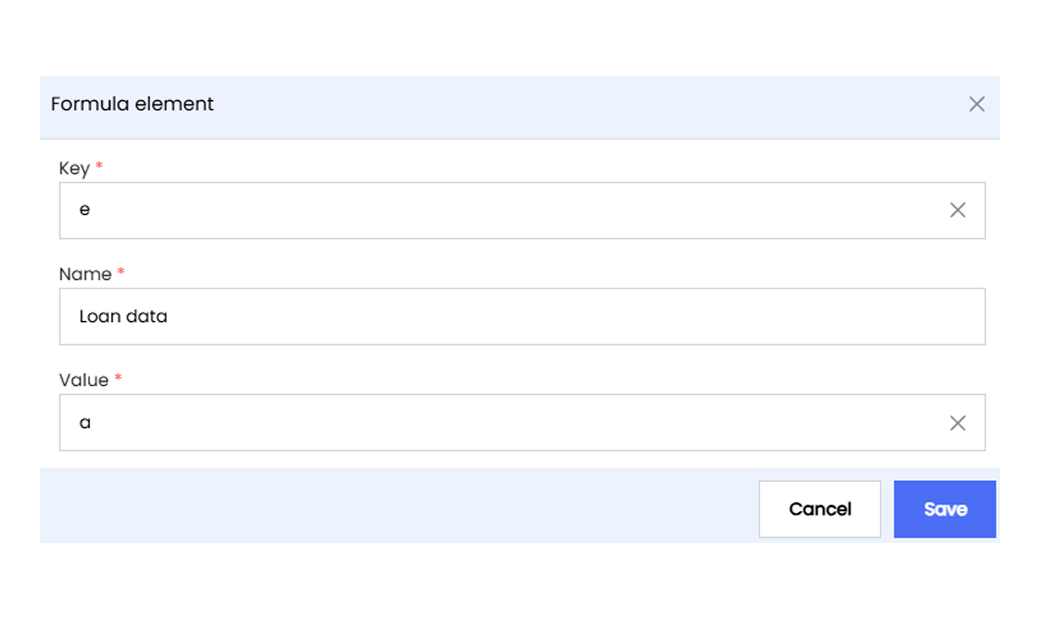
2. Click **Save** to add it to the formula.